How to Export Your Goodreads Library (and Keep Your Reading History Safe)
How to export Goodreads library: download the CSV, check shelves and dates, preserve an untouched backup, and map selected fields into your own spreadsheet.
By Ultimate Book Tracker by Cosmo Suite · Editorial policy
Published · 9 min read
You remember the book, but its title escapes you. Somewhere in your Goodreads shelves sit the rating and the note that would bring it back. Keeping a separate copy gives you another place to look, whether you stay on Goodreads or move your record elsewhere.
Start on the computer website: My Books, then Import and export, then Export Library. Download the CSV when its link appears, and keep that original file untouched.
Open the download before relying on it. Turning those rows into a usable reading tracker takes a separate step. You will inspect the columns, compare a few familiar books, and map the details you want to keep. The example below uses an actual older Goodreads sample, with its limits stated.
The Short Version
- Request the library CSV from the Goodreads website, then check the download date.
- Keep the original file and edit a separate copy.
- Inspect your own headers before mapping shelves, dates or private text.
- Moving selected fields into Ultimate Book Tracker is manual; no automatic Goodreads import is promised.
How to Export Your Goodreads Library, Step by Step
Use the Goodreads website to request the library export, then download the CSV from the export page.
- Sign in through a computer browser and open My Books.
- Look for Tools beside your shelves and choose Import and export.
- Select Export Library.
- Return to the page and look for the dated download link.
- Download the file and check its name and date before saving a backup.
This path appears in an older Goodreads Help community answer, posted in 2020 by a member quoting the help instructions. It is historical guidance, not a test of your current account. Menu labels can change, so confirm them on your screen.
If a previous export is already listed, check that you download the file from your new request. Do not substitute an old backup without noticing its date. If the tools are missing, open Goodreads Help from your account and search for library export. There is no fixed generation time promised here.
Goodreads Export Columns at a Glance
Map the headers in your downloaded CSV to the fields you want to keep, and preserve the remaining columns in your backup.
| Field to look for | Destination | Why |
|---|---|---|
| Title and Author | Title and Author | Keep the book's identity |
| ISBN or ISBN13 | ISBN stored as text | Preserve leading zeros and any X |
| My Rating | Your rating | Check how unrated values appear |
| Shelves or Exclusive Shelf, if present | Status | Check which field holds the reading state |
| Bookshelves | Shelves or tags | Keep your custom categories |
| Date Read | Finish date | Preserve blanks when the date is unknown |
| My Review or notes fields, if present | Review or Notes | Check the actual text before relying on it |
The older official sample uses Shelves and Bookshelves. Your current file may use different headers, including Exclusive Shelf. Read a few values under each header before deciding where that column belongs.
If building that destination is the sticking point, a ready-made book tracker for Excel and Google Sheets gives you defined fields. You still need to map the Goodreads data yourself. Keep columns you do not use in the original CSV, so today's choices do not erase tomorrow's options.
What the Goodreads CSV Holds
A CSV is a plain-text table: column headers describe the fields, and the rows hold the book details.
Look through your downloaded file for identifiers, ratings, dates and shelf labels. If you need reviews or private notes, find those columns and inspect their contents. Do not assume an export contains every detail visible in your account.
A blank finish date should stay blank until you can confirm it. The date you added a book to your shelves answers a different question. Copying that date into a finish field would turn a missing fact into a false reading record.
Keep book identifiers if your file includes them. A title can have several editions, and different editions can have different page counts. Identifiers give you something to compare when similar titles appear twice.
Treat ISBNs as text. They are labels for editions, so arithmetic has no use here. Preserve any leading zeros or final X when opening or cleaning a working copy. Check how the spreadsheet displays the value before pasting it elsewhere.
One Goodreads Sample Row, Worked Through
The row for Power of One shows how to map a book without inventing a finish date or losing its ISBN.
Goodreads' official sample CSV has an older layout and four example book rows. It is not a current export specification or a reader migration test. The row's ISBN is 034541005X, its Shelves value is currently-reading, and its Bookshelves value is fiction. Date Read is blank.
In a destination with the relevant fields, keep the ISBN as text and map currently-reading to Reading. Put fiction in a shelf or tag field if that matches how you use it. Leave the finish date blank. The sample also contains a rating, which does not justify changing the book's status to Read.
The reading state tells you that this book is in progress. Fiction belongs in a separate category field, so keep both when you map the row. Apply the same check to your own labels before moving a larger batch.
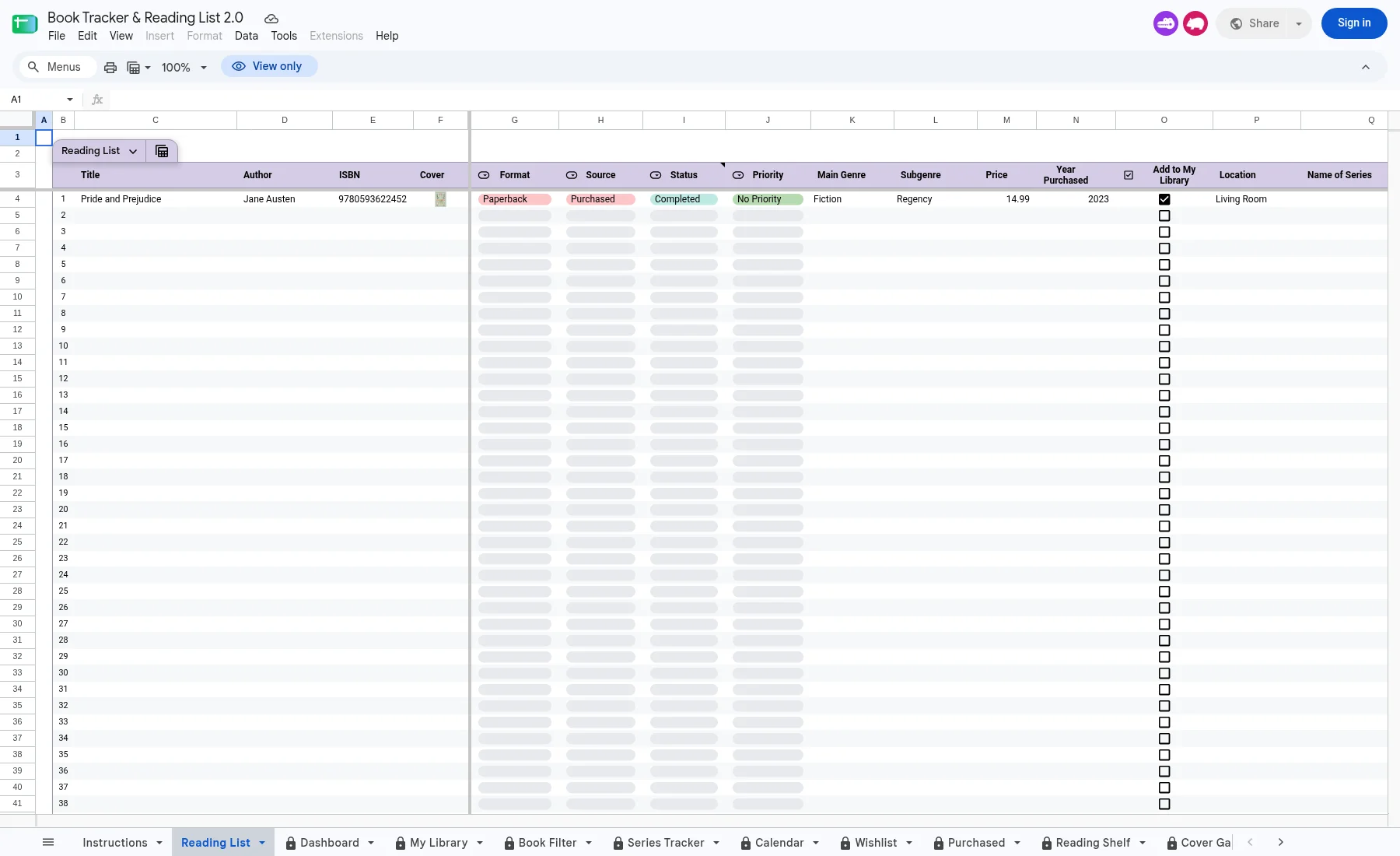
This is the delivered workbook's Reading List tab with its supplied example row, captured on 13 October 2026. It is not an imported Goodreads library.
How to Move Your Goodreads Data Into a Spreadsheet
Open the CSV in a separate working spreadsheet, then copy selected values into matching destination fields.
Open a separate copy
Google's CSV import instructions describe File > Import. Choose your downloaded file and select Create new spreadsheet when that option is available. Check the separator if the data does not split into columns.
A new sheet gives you room to inspect the raw import before touching your tracker. Avoid replacing a prepared workbook with the CSV. Its formulas and setup belong to the destination, while your download needs inspection first.
Preserve identifiers and headers
Keep the original headers in the working sheet until you have mapped them. If you rename them, record which old field became which new field. Keep unused columns off to the side instead of deleting the only copy.
Set destination ISBN cells to text before transferring identifiers. If your file has wrappers around them, inspect a few values before removing the wrappers from that column. Do not run a blanket replacement across reviews or notes. Check an ISBN with a leading zero after the transfer.
Microsoft explains how to preserve leading zeros during Excel import: import through Data > From Text/CSV, then set the identifier column to Text in the query editor before loading. Applying a display format afterwards will not restore a zero already lost. If that happens, copy the identifier again from the untouched CSV.
Map statuses and keep custom shelves
Map read, currently-reading and to-read according to your tracker's choices, after checking what they mean in your rows. Custom shelves need the same attention.
Goodreads supports custom exclusive shelves, as explained in a Goodreads moderator answer about shelf choices. A DNF shelf, meaning did not finish, can therefore be part of a custom setup. Inspect both the reading-state field and Bookshelves. Do not assume every custom label is an ordinary tag or that DNF must be hidden under to-read.
A total read count and a reread count also need separate treatment. Check the destination's definition before copying a number. If its field counts additional reads after the first, a total count cannot go there unchanged. Keep the original value until you have confirmed the mapping.
Enter a small batch into your tracker
Choose a small batch with different statuses and at least one blank date. Match each column to the tracker's input fields, then check dropdowns and formulas. Paste values only where the destination accepts inputs. Leave formula cells in place.
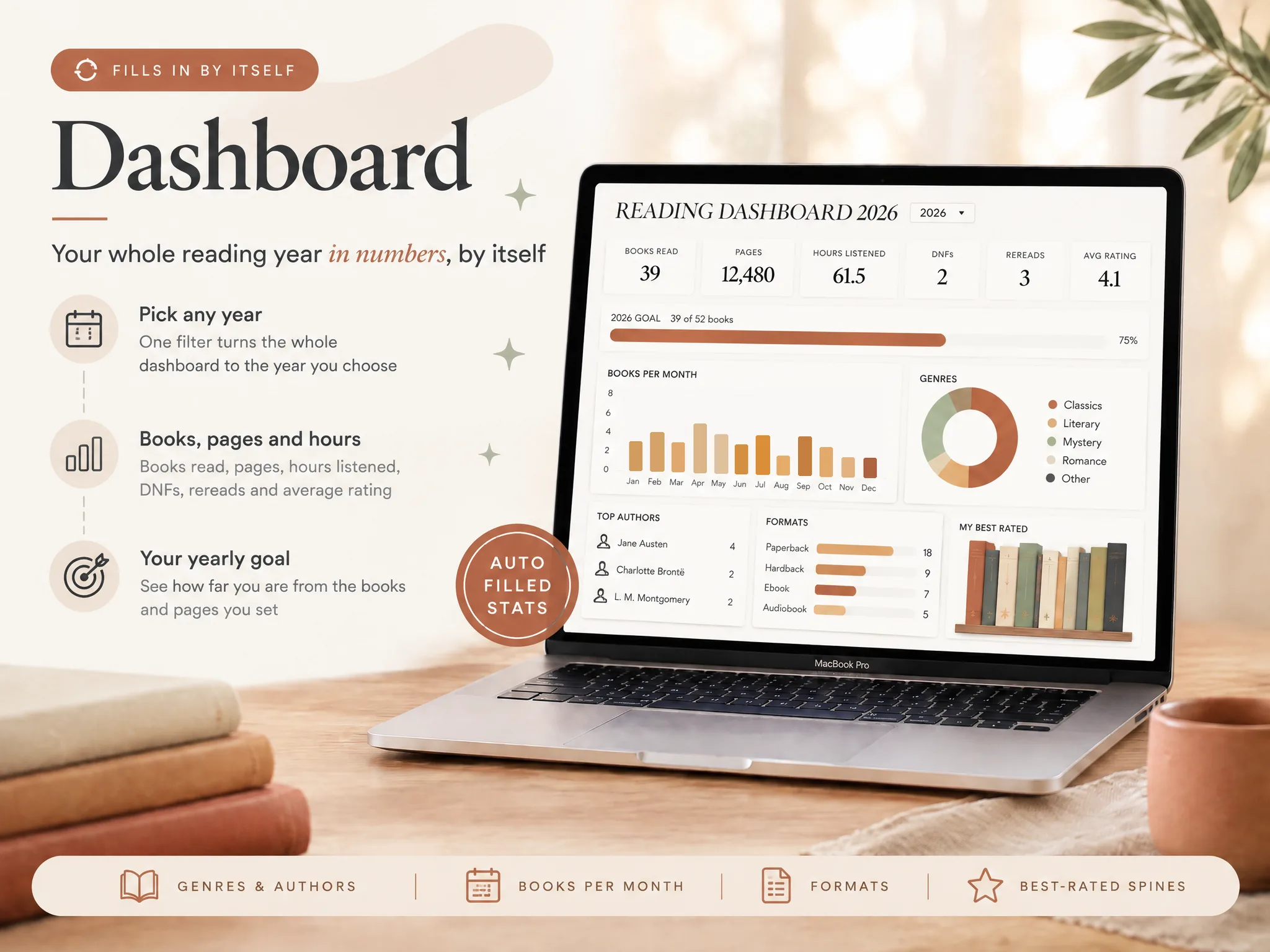
For Ultimate Book Tracker, use the Reading List as the input area and follow the setup tab. Its connected tabs summarize those entries. The Dashboard below shows the destination's layout; it does not prove a CSV import or demonstrate your exported data.
Check the Export Before You Trust It
Compare the downloaded rows with familiar books in your account before treating the file as your backup.
Choose examples that matter to you: a recent finish, an older favourite with a review, and a book on a custom shelf. Check title and edition first, then compare the fields you want to preserve. Look inside long review cells instead of judging them from the clipped text on screen.
Count rows with the header excluded. Compare a clearly defined shelf or subset with the matching account view. Adding every shelf total can count a book several times when it belongs to several categories. Use the same group on both sides of the comparison.
If a field is absent or empty, investigate. It could reflect a missing entry, the export's scope, or a problem with the download. It does not prove the information was never stored. Compare the source book page, request another export if needed, or contact Goodreads Help.
Repeated reading dates deserve their own check. Do not assume one Date Read column preserves every reading session. If your file omits details you care about, keep them in a separate note before relying on the backup.
Keep Your Reading History Safe
Keep an untouched dated download, a working spreadsheet, and another copy stored somewhere independent of the first.
Name the backup so you can tell when you requested it. Keep that CSV separate from the version where you tidy shelf names or change columns. If a later edit goes wrong, the raw file gives you a place to start again.
Choose an export routine that fits your reading. A yearly wrap-up can be a reminder; export more often if you would miss the books added between backups. Open an older copy occasionally to check that you can still find and read it.
A private reading record with custom statuses can hold the details you want to keep using. Keep the source CSV alongside it, because the tracker will only hold what you transfer or enter.
You can keep Goodreads for its community. The comparison of Goodreads alternatives covers other ways to keep track of books if you want to move your everyday record elsewhere.
Where the Ultimate Book Tracker Fits
Ultimate Book Tracker is a spreadsheet destination for your own reading record, with a manual move from Goodreads.
It includes Google Sheets and Excel versions with the same 14 connected tabs, room for 5,000 books, and a $9 one-time price. Enter books in the Reading List, and the Dashboard, Monthly Wrap-Up and other connected tabs update from those entries.
The Reading List includes statuses such as TBR, Reading, Read, DNF and Rereading. It also has review and notes fields, favourite quotes, and half-star ratings. Settings lets you define your own statuses and other choices. Match the Goodreads values you want to keep to those fields.
No automatic Goodreads import is promised. Plan for manual mapping and entry, and check a small batch before transferring more. The setup tab explains the steps. Phone use is through the Google Sheets app; setup is easiest on a computer. Do not treat a spreadsheet's cloud access as an integration with Goodreads.
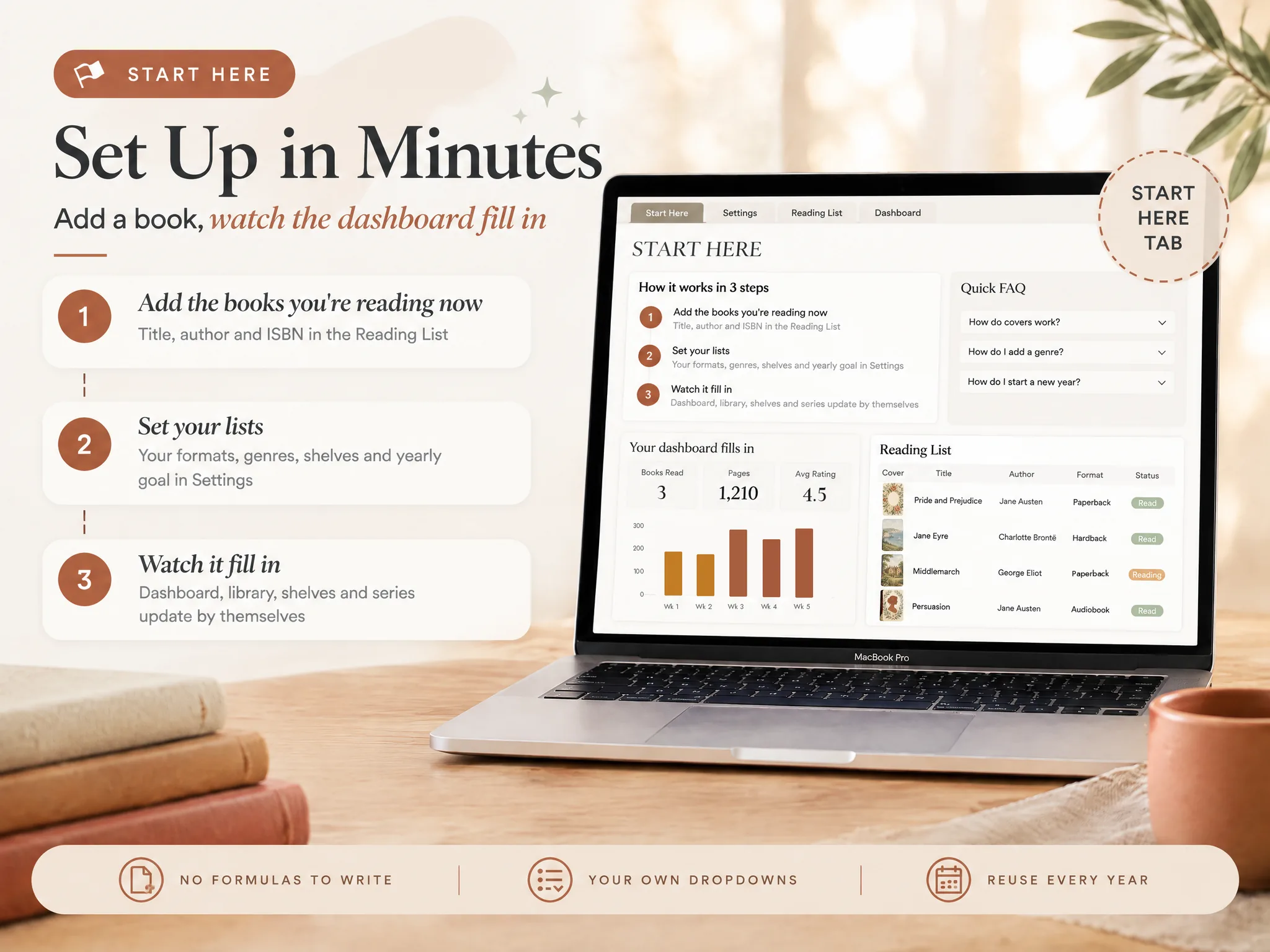
The connected reading tracker and its screenshots show the destination before you buy. If you want to build a sheet yourself, the book tracker spreadsheet guide covers a starting structure.
We are the Cosmo Suite team that built Ultimate Book Tracker. The sources here support the export guidance and sample mapping; no signed-in export was tested for this article. Our about page and contact details identify the publisher, and our editorial policy explains how these guides are prepared.
Frequently asked questions
Can I export my Goodreads library from my phone?
Try the Goodreads website in a browser if you only have a phone. The instructions here follow the computer website, where the menu is easier to find. If the mobile layout hides the tools, try the browser's desktop-site setting. Check your screen rather than assuming the app and website have the same controls.
Does the export include my reviews and private notes?
Check your downloaded file. The older Goodreads sample has a My Review column, but it does not establish what a current export includes. Look for the fields you need and compare their contents with your account. If notes are missing, keep them separately and investigate before treating the CSV as your complete backup.
How long does a Goodreads export take?
There is no verified waiting time in this guide. Request the export, then return to the page to look for the download link. Check whether an existing link has the date of your new request. If generation fails or the file remains unavailable, use Goodreads Help instead of assuming a fixed deadline.
Will the Ultimate Book Tracker import my Goodreads file automatically?
No automatic Goodreads import is promised. Plan to map selected columns and enter them in the Reading List manually. Start with a small batch and check the destination's dropdowns, dates and formulas before moving more books. The Google Sheets CSV import described here creates a separate working sheet; it does not import the library into the tracker.
Should I delete my Goodreads account after exporting?
You can keep your account. A downloaded backup and a private spreadsheet can sit alongside Goodreads if you still enjoy its reviews or community. Check your exported file and preserve anything missing before making a separate decision about leaving. Downloading a CSV is only the backup step in this guide.
Sources
- Goodreads Help community: exportation of the library (older member answer)
- Goodreads: sample_export.csv (older sample, not a current schema guarantee)
- Google Docs Editors Help: Import data sets & spreadsheets
- Goodreads Help community: custom exclusive shelves (moderator answer)
- Microsoft Support: Keeping leading zeros and large numbers
