Book Tracker Template: 12 Columns That Earn Their Place
Book tracker template: copy a 12-column reading list, choose what to track, and compare paper, Excel, Google Sheets and ready-made options.
By Ultimate Book Tracker by Cosmo Suite · Editorial policy
Published · 10 min read
A book tracker template is a reading list with fields for information you want to find later, such as format, status, or finish date. You finish a book and want to save more than its title. Maybe you need the edition or a note about where you stopped. Give those details a place, then leave out fields you won't use.
The Short Version
- Start with 12 columns and one row per book; add optional fields when you need them.
- Keep format separate from status, and track pages separately from listening hours.
- Choose a DIY sheet for control or a ready-made file for a prepared layout.
Start with one row per book and a short set of columns. Add more when you find yourself asking the same question again. Below is a copyable layout and a way to decide whether paper, a DIY sheet, or a ready-made file suits how you read.
What should a book tracker template remember?
A book tracker template should hold details you expect to look up, such as an author's name, reading format, and current status. Start with the book's identity and progress. Add a field when the same question comes up repeatedly. A title list can stay short; a home library may also need ownership or location.
Give every book one row. Then sort or filter by a column instead of keeping separate lists for books you own, books in a series, and books you have finished. A single row can hold several facts about the same book without making you search across pages.
Keep different ideas in different fields. Format tells you whether the book was print, ebook, or audio. Status tells you whether it is on your TBR, in progress, finished, a DNF, or a reread. A finish date tells you when it left your current reading list. Each answers a different question.
The book tracker spreadsheet guide walks through the build-it-yourself route and what a connected workbook looks like. If you already know you want a template, the comparison below helps narrow the format first.
Book tracker template at a glance
Paper suits readers who enjoy writing by hand and do not need quick search or totals. A DIY spreadsheet gives you control over fields, with setup and maintenance left to you. A ready-made file gives you a prepared structure. Choose based on how you want to enter and find book details over time, and how much setup you want to do yourself.
| Format | Search and totals | Custom fields | Setup | Best for |
|---|---|---|---|---|
| Paper journal or printable | Manual | Easy to change on the page | None | A quiet writing ritual |
| DIY spreadsheet | Searchable; totals depend on your setup | High | You choose fields and maintain the sheet | Readers who like to tinker |
| Ready-made spreadsheet | Depends on the file | Usually some settings | Use its instructions | Readers who want a prepared layout |
Choose the layout that lets you find the clues you remember and add another book without reworking the system. If you want a prepared layout, Ultimate Book Tracker (by Cosmo Suite: one Excel and Google Sheets file, 14 tabs, $9 once) is one option.
One Reading Year, Worked Through
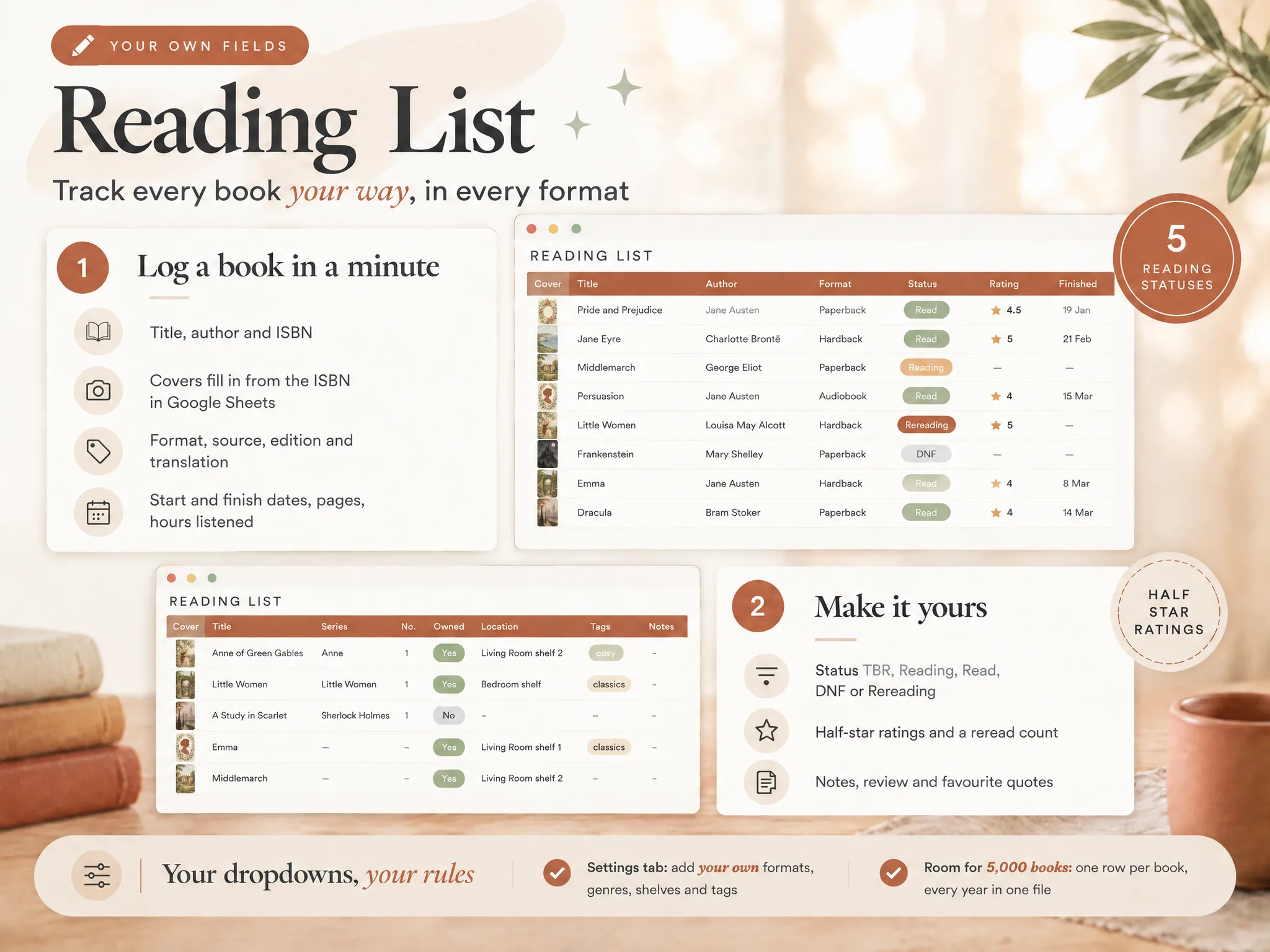
In a connected workbook, enter each book once in Reading List, then set Format and Status. Record Pages for a print or ebook, and Hours Listened for audio. Add start and finish dates when you know them. Mark a book DNF when you stop, or Read when you finish it.
The Dashboard uses a year filter to show books, pages, hours listened, DNFs, rereads, and average rating. Monthly Wrap-Up gives a month view. Both draw from Reading List, so you do not need to enter those totals a second time.
What columns belong in a book tracker?
Use one row per book, with separate fields for title, author, format, status, dates, and reading measures. The 12-column starter below covers common tracking needs without requiring every field for every entry. Copy the headings, leave unknown values blank, and add optional columns only when they help you find something later. This makes a new entry easier to complete and older ones easier to filter.
Core details
| Column | What to enter | Why it earns a place |
|---|---|---|
| Title | The title you recognize | Finds the book again |
| Author | The author name as you prefer to search it | Helps separate books with similar titles |
| Format | Print, ebook, or audiobook | Lets you compare reading types |
| Status | TBR, Reading, Read, DNF, or Rereading | Shows where the book stands now |
| Start date | When you began this entry | Helps you remember what was in progress |
| Finish date | When you finished or stopped | Supports a year or month view |
Progress and series
| Column | What to enter | Why it earns a place |
|---|---|---|
| Pages | Page total for the edition you read | Keeps print and ebook page counts visible |
| Listening hours | Time for an audiobook | Gives audio its own measure |
| Rating | Your chosen scale, including half stars if useful | Preserves your own verdict |
| Reread count | Number of repeat finishes you want to count | Separates a reread from the first finish |
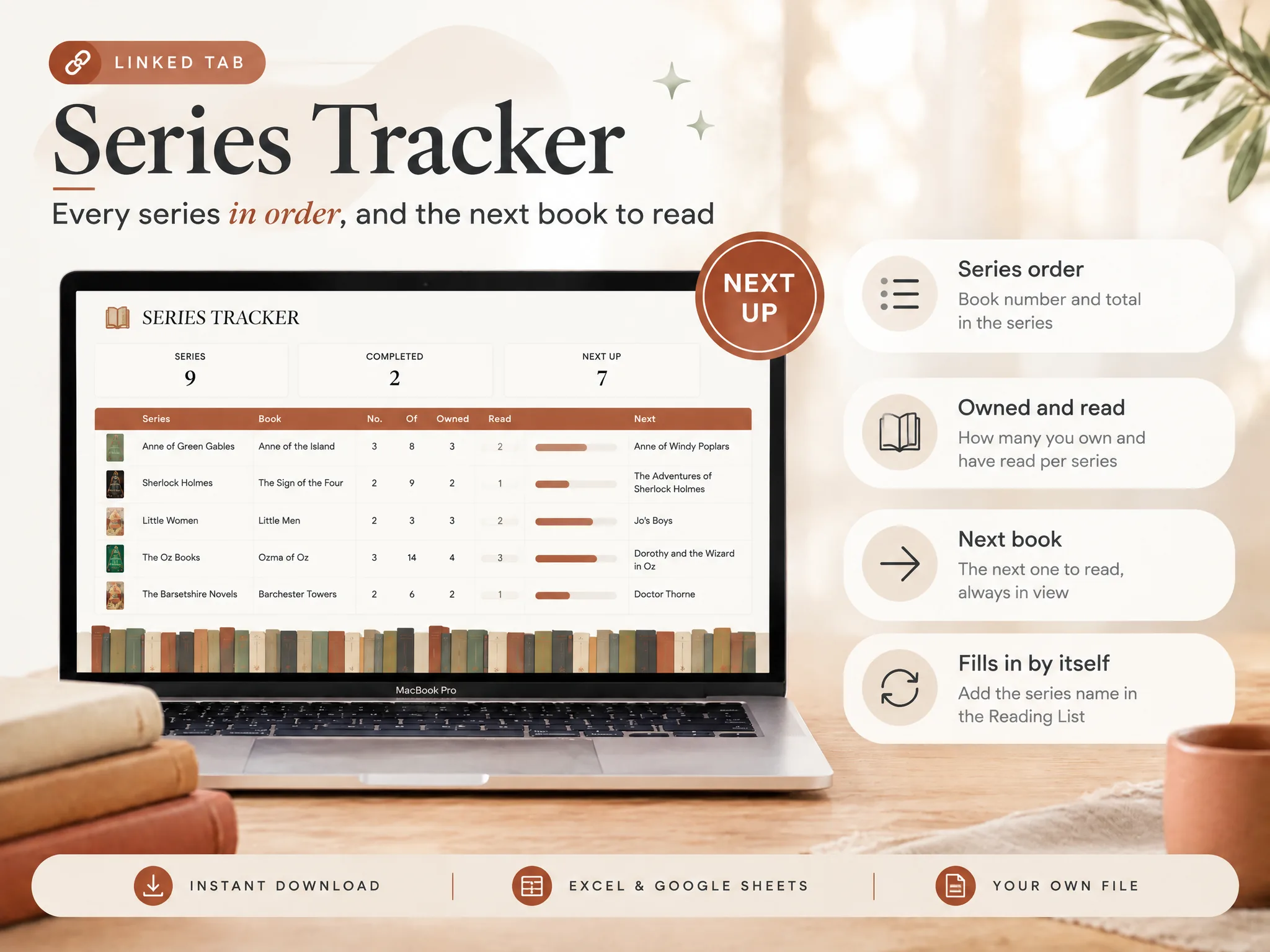
| Series name | The series, if there is one | Groups books that belong together |
| Series number | The book's position in that series | Helps you see where to continue |
Status and format deserve separate columns. An audiobook can be TBR, Reading, Read, DNF, or Rereading, just like a print book. If you combine format and status in one cell, filtering for all audiobooks becomes harder. The list can also grow into many nearly identical labels.
Try the same fields for a print book, an audiobook, and a DNF:
| Example | Format | Status | Pages | Listening hours | Dates |
|---|---|---|---|---|---|
| Print book in progress | Reading | Edition page total, if known | Leave blank | Enter start date; leave finish date blank | |
| Audiobook finished | Audiobook | Read | Leave blank | Listening duration, if known | Enter start and finish dates if known |
| Book stopped partway | Chosen format | DNF | Edition page total, if useful | Audio duration, if useful | Record dates you know; leave unknown dates blank |
Leaving an unused measure blank keeps audio time out of a page total. Format, Status, Pages, Listening Hours, and dates each keep their own place.
Keep start date and finish date separate too. You may know when you began without knowing when you finished. If you stopped a book, the finish-date field can record the date you stopped, while Status marks it DNF. If you do not know the date, leave it blank rather than filling it with the date you entered the row.
Pages and listening hours are different measures. A book may have a page count in its edition record, while the audiobook was listened to for a duration. Put them in separate fields, and avoid adding them together as if they measured the same thing.
Which optional book fields are useful?
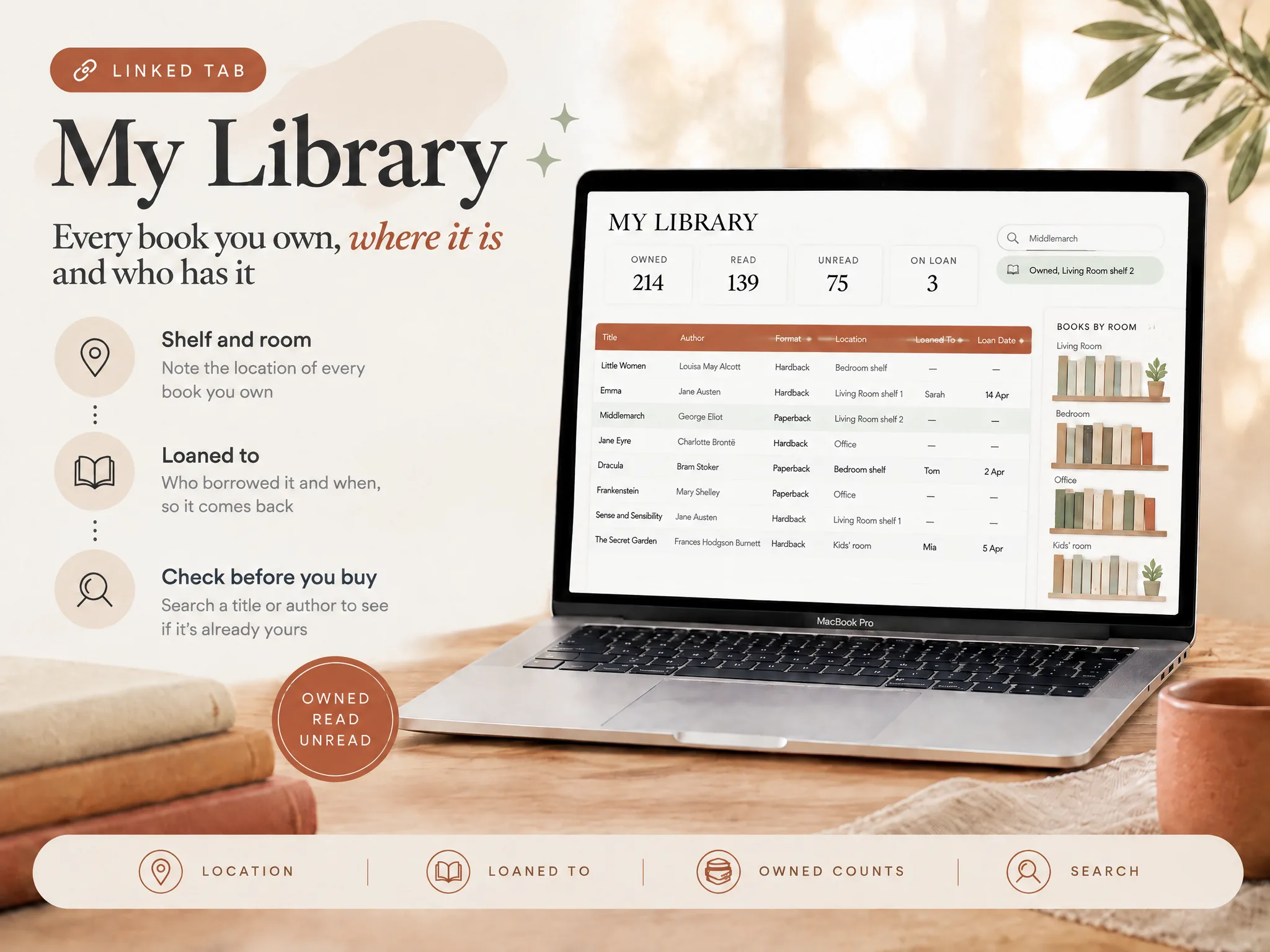
Optional fields help when they answer a real question about editions, your home library, or what to read next. The 12-column list covers basic reading progress. Add ownership, location, genre, or notes only if you will use them; an empty column makes the list wider without helping you recall a book.
For editions, add an ISBN or edition/translation field. The Library of Congress notes that hardcover, paperback, and ebook versions can have different ISBNs, so this field can help distinguish copies when page counts or covers differ (Library of Congress ISBN FAQ). For a home library, add owned, location, or loaned-to details. For choosing a next read, add genre, tags, or a TBR priority. For reflection, add notes or a review.
Keep a short note separate from a review if you want both. A note might help future you remember where you paused or what to look up. A review is your considered response to the book. If one field does both jobs for you, there is no need to split it.
You can also keep price and year bought if you want a purchase record. Those fields serve a different purpose from reading progress. They may fit better in a separate tab or view when your main question is “What should I read next?”
How can you keep book entries consistent?
Dropdowns can keep repeated labels consistent in fields such as Format and Status. Google Sheets lets you create an in-cell dropdown from typed options or a range. Excel data validation can restrict cells to list values, dates, or numbers. Set the choices first, then test them in an empty row before adding a full library.
Choose the words before adding the rule. For Format, you might use print, ebook, and audiobook. For Status, the five choices above cover a basic reading list. Add your own only if you use them. A dropdown is useful when you select from the same short set; it is not needed for titles, authors, or notes.
Google's dropdown instructions explain how to add values or point a dropdown to a range. Microsoft describes the matching setup in Excel data validation. Try each choice in an empty row before you fill the sheet, so you know where to edit the options later.
Make the first row your header and keep each row about one book. Excel tables include a header row with filtering enabled by default, as described in Microsoft's table overview.
Before using the list for a full reading year, try a small group of entries. Filter Status to see only books you are reading. Then filter Format for audiobooks. If the results do not make sense, check for spelling differences or values that belong in another column.
Should you use paper, a DIY sheet, or a ready-made file?
Paper has the lightest setup and suits readers who enjoy writing entries by hand. A spreadsheet is easier to sort or search, but a DIY version takes time to organize and maintain. A ready-made file starts with a prepared layout, so check its fields and compatibility before you choose it.
A DIY spreadsheet can match your habits closely. You decide the fields and can change the layout over time. You also own the maintenance: categories need consistent names, and any formulas or summaries are yours to check. Start with a small list before adding dashboards or extra tabs.
A ready-made spreadsheet starts with a prepared structure. Check the contents before choosing one: does it hold the statuses, reading formats, series fields, and notes you actually want? See whether the file works in your preferred spreadsheet program and whether you can adjust settings. A long feature list does not help if the entry row feels cumbersome.
For titles and ratings, a short list may be enough. Separate fields help you revisit rereads, DNFs, audio hours, or a home library. Pick the smallest layout that answers questions you ask more than once.
How do you keep a tracker easy to maintain?
A tracker is easier to maintain when each entry helps with a task you repeat, such as finding a finished title or seeing what book comes next in a series. Put frequently used fields first and keep categories short. If entering a book feels slow, remove fields you rarely check or move them to another view.
Keep the first view calm. Put the fields you enter most often near the front. Use dropdowns only for short categories. Move purchase, ownership, or quote details out of the main view if they make a routine entry feel slow.
Separate an ongoing status from a completed record. A book's current Status can change from Reading to Read or DNF. A reread count preserves the fact that you returned to it. If you need a date for every reading session, use a separate session log; one Start Date and Finish Date pair only describes the current row.
The broader book tracker spreadsheet guide gives examples of connected views and DIY trade-offs. Use its structure as a menu, not a requirement. Your tracker should reflect the questions you actually ask about your own books.
Where the Ultimate Book Tracker Fits
The Ultimate Book Tracker is a prepared workbook with connected reading-list and reference tabs. It includes one Google Sheets file and one Excel file with the same 14 tabs. The Reading List is the entry point; other tabs cover a Dashboard, Monthly Wrap-Up, reading calendar, series, library, and covers.
We're the Cosmo Suite team behind it. Our About page explains who makes the product, and the editorial policy describes how we check articles.
The file has room for 5,000 books and can be reused each year with a year filter. It also includes a printable reading journal PDF with four pages in US Letter and A4.
Set it up on a computer, then use the Google Sheets app for phone entry if you choose the Sheets version. The product does not promise automatic Goodreads import, reminders, or syncing.
If a ready-made workbook fits your preference, the Ultimate Book Tracker files and included tabs are one option. If you'd rather keep a blank sheet, the 12-column layout above is a good place to begin. Add optional fields when you discover what you want to look up.
Frequently asked questions
Can I get a book tracker template for free?
Yes. You can make a blank sheet or find free templates online. Check whether the layout has the fields you need and whether you can edit it in your spreadsheet program. A printable page works too, though searching and totals are manual.
What columns should a book tracker template have?
Start with title, author, format, status, start and finish dates, pages, listening hours, rating, reread count, series name and series number. Add fields such as genre, edition or notes when you use them.
Should audiobooks and print books go in the same tracker?
They can share one list if Format distinguishes audiobook from print or ebook. Keep Pages and Listening Hours separate, then compare each measure on its own. Leaving an unused measure blank is clearer than treating listening time as pages.
How do I record books I did not finish or read again?
Give Status choices for DNF and Rereading, then use Reread Count for repeat finishes if you want a total. Keep the original start date and finish date for the current entry. You can add a separate reading-session log later if you need dates for every reread.
Do the Excel and Google Sheets versions have the same columns?
A DIY workbook can use the same column names in either program, though dropdown and filtering controls differ. Ultimate Book Tracker includes one Excel file and one Google Sheets file with the same 14 tabs. Check the included setup guide for the version you use.